Exploring API Inventory  

As soon as the API Discovery module has built the catalog of your endpoints (your API inventory), you can explore it in the API Discovery section of Wallarm Console. Learn from this article how to go through the discovered data.
Endpoints
Explore your discovered API inventory using the API Discovery section in the US or EU Cloud.
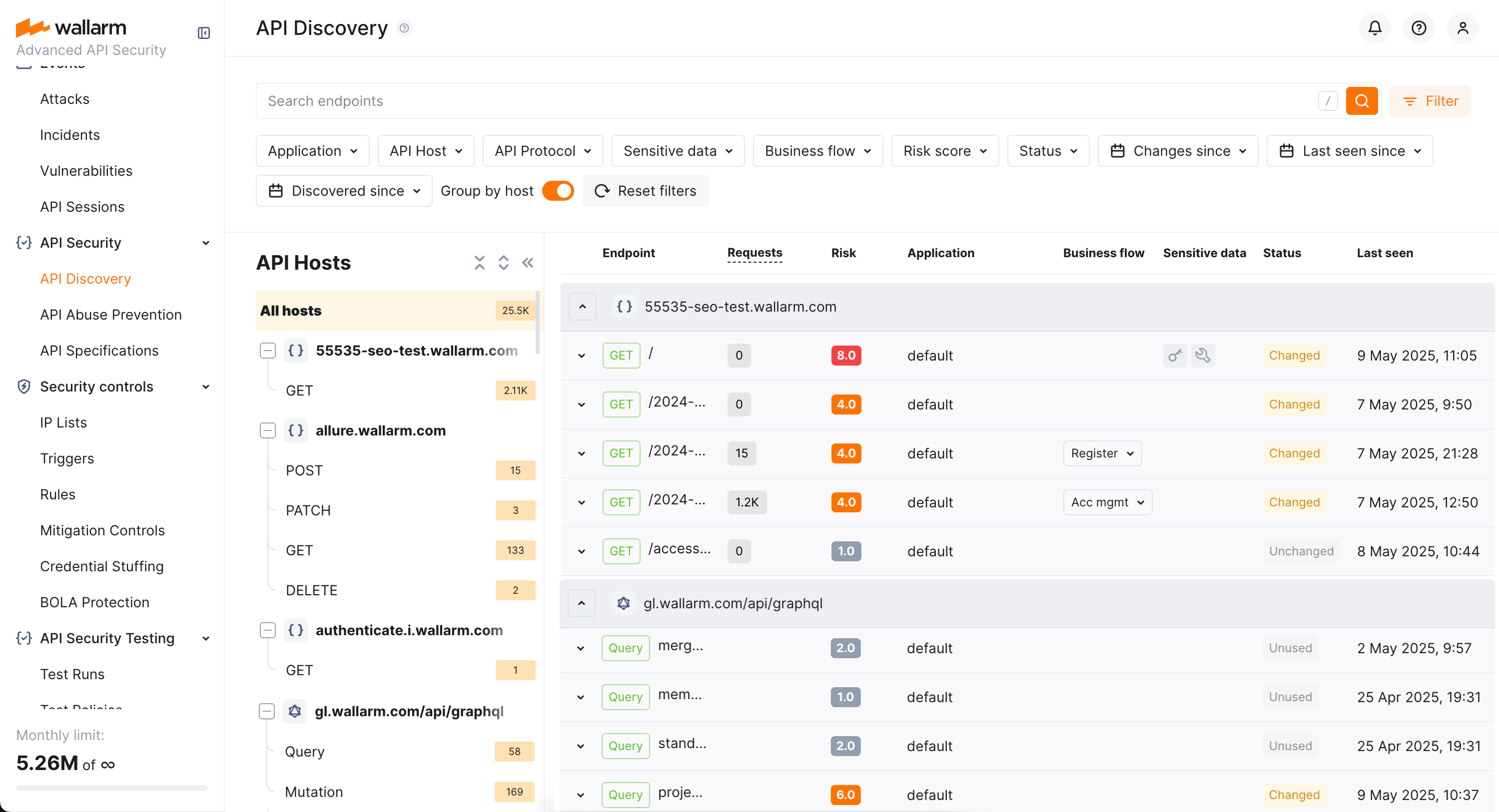
By default, endpoints and operations are sorted by host/endpoint or operation name. Also, Group by host is on. With grouping by host disabled, you can sort endpoints by risk.
Filtering
Among a wide range of API endpoint filters, you can choose the ones corresponding to your analysis purpose, e.g.:
-
Find the endpoints characterized with the highest risk level to analyze and mitigate the risks.
-
Find endpoints related to specific application.
-
Find the endpoints that have been changed or newly discovered in the last week and that process PII data. This kind of request can help you to stay up to date with critical changes in your APIs.
-
Find the endpoints being used to upload data to your server by the PUT or POST calls (REST) or mutations (GraphQL) (API protocols filter with methods for REST and operation types for Graph QL). Since such endpoints are a frequent attack target, they should be well secured. Using this kind of request you can check that endpoints are known to the team and are well secured from attacks.
-
Find the endpoints processing sensitive data to ensure they are properly secured.
-
Find the endpoints of a deprecated API version (e.g. by searching
/v1) and make sure that they are not used by clients.
Labeling
You can create labels (e.g., P90, HighTraffic, Legacy, etc.) and assign them to endpoints to manage them more effectively. Once labels are assigned, use the Label filter to quickly search and isolate endpoints based on these custom labels.
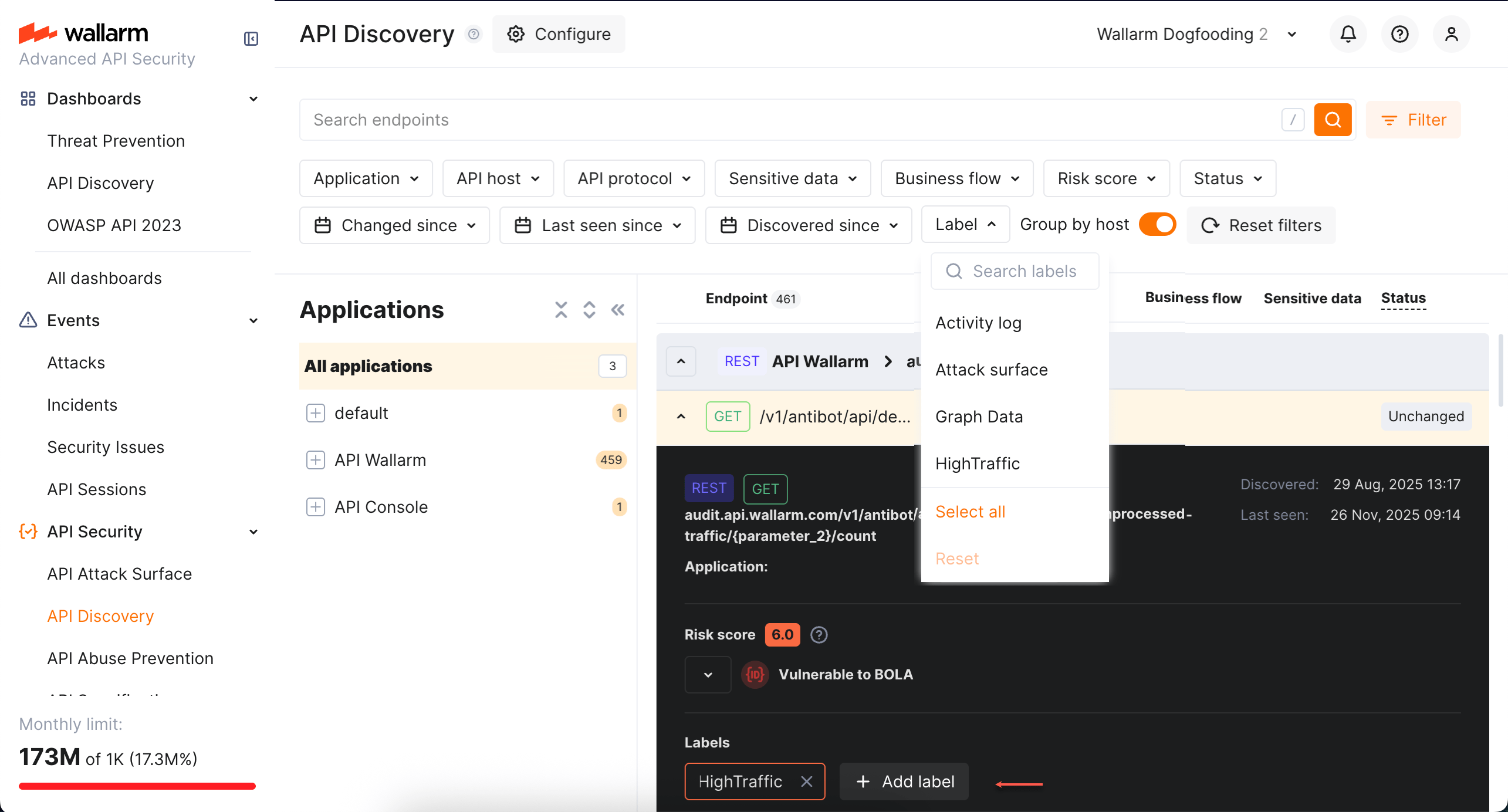
Note that several labels can be assigned to the same endpoint.
REST endpoint details
By clicking the REST endpoint, you can find its details, including transferred sensitive data, risk score and what contributes to it, headers and parameters of requests and responses:
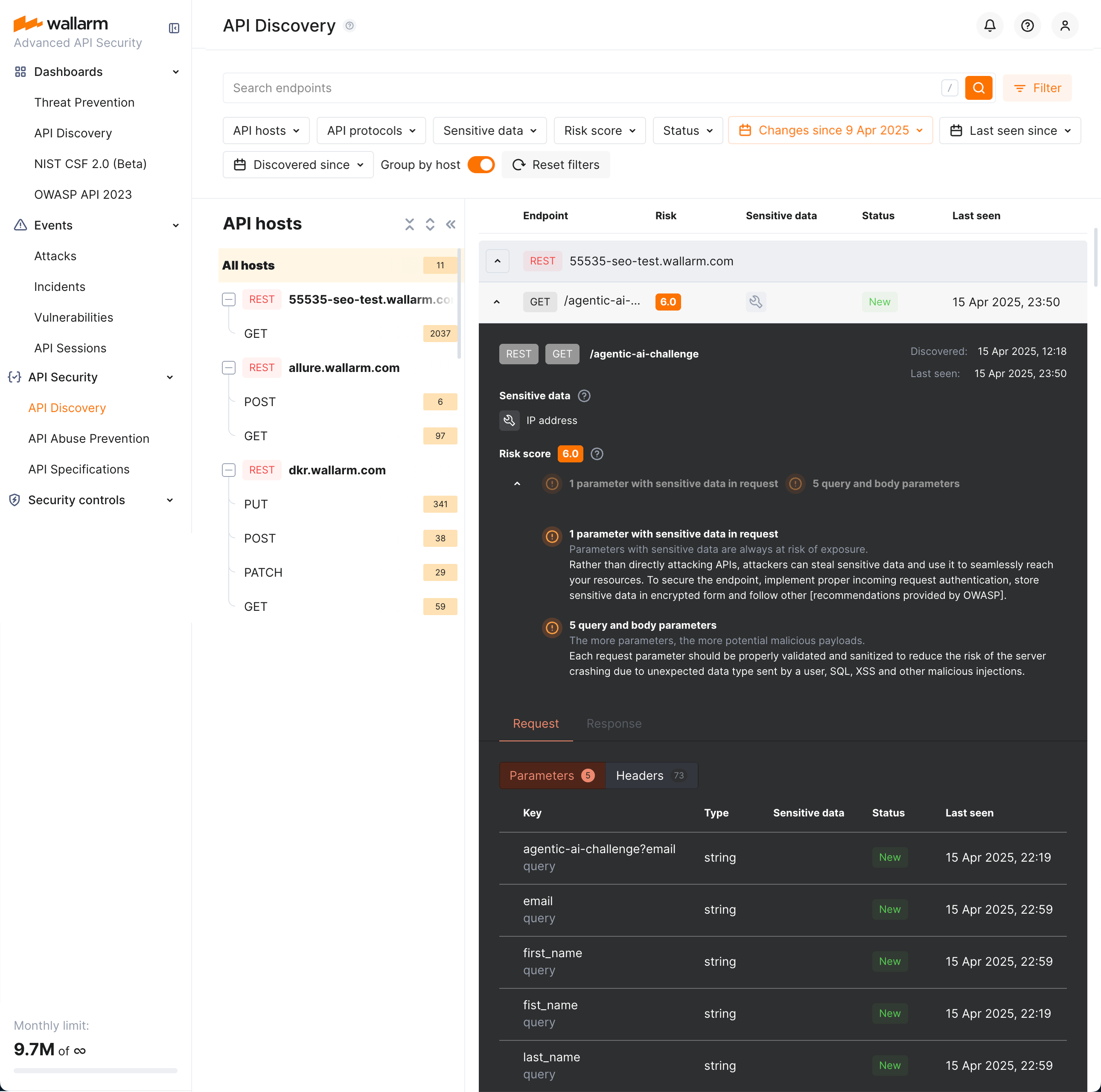
Each request/response parameter information includes:
-
Parameter name and the part of request/response this parameter belongs to
-
Path: the hierarchical location of a parameter within a REST query structure (not displayed, if all parameters are stored in the same root location)
-
Information about parameter changes (new, unused)
-
Presence and type of sensitive data transmitted by this parameter, including:
- Personally identifiable information (PII) like full name, passport number or SSN
- Login credentials like secret keys and passwords
- Financial data like bank card numbers
- Medical data like medical license number
- Technical data like IP and MAC addresses
-
Type/format of data sent in this parameter
-
Date and time when parameter value was last transferred by requests
REST format and data type
In REST endpoint details, in the Type column for parameters of request and responses, Wallarm indicates the data format identified through traffic analysis or, if not specific, a general data type.
For REST endpoints, Wallarm attempts to detect various data formats such as Int32, Int64, Float, Double, Datetime, IPv4/IPv6, among others. If a value does not conform to any recognized data format, Wallarm classifies it under a general data type, such as Integer, Number, String, or Boolean.
This data allows checking that values of the expected format are passed in each parameter. Inconsistencies can be the result of an attack or a scan of your API, for example:
-
The
Stringvalues are passed to the field withIP -
The
Doublevalues are passed to the field where there should be a value no more thanInt32
GraphQL operation details
By clicking the GraphQL operation, you can find its details, including transferred sensitive data, risk score and what contributes to it, schema, parameters and headers of requests and responses:
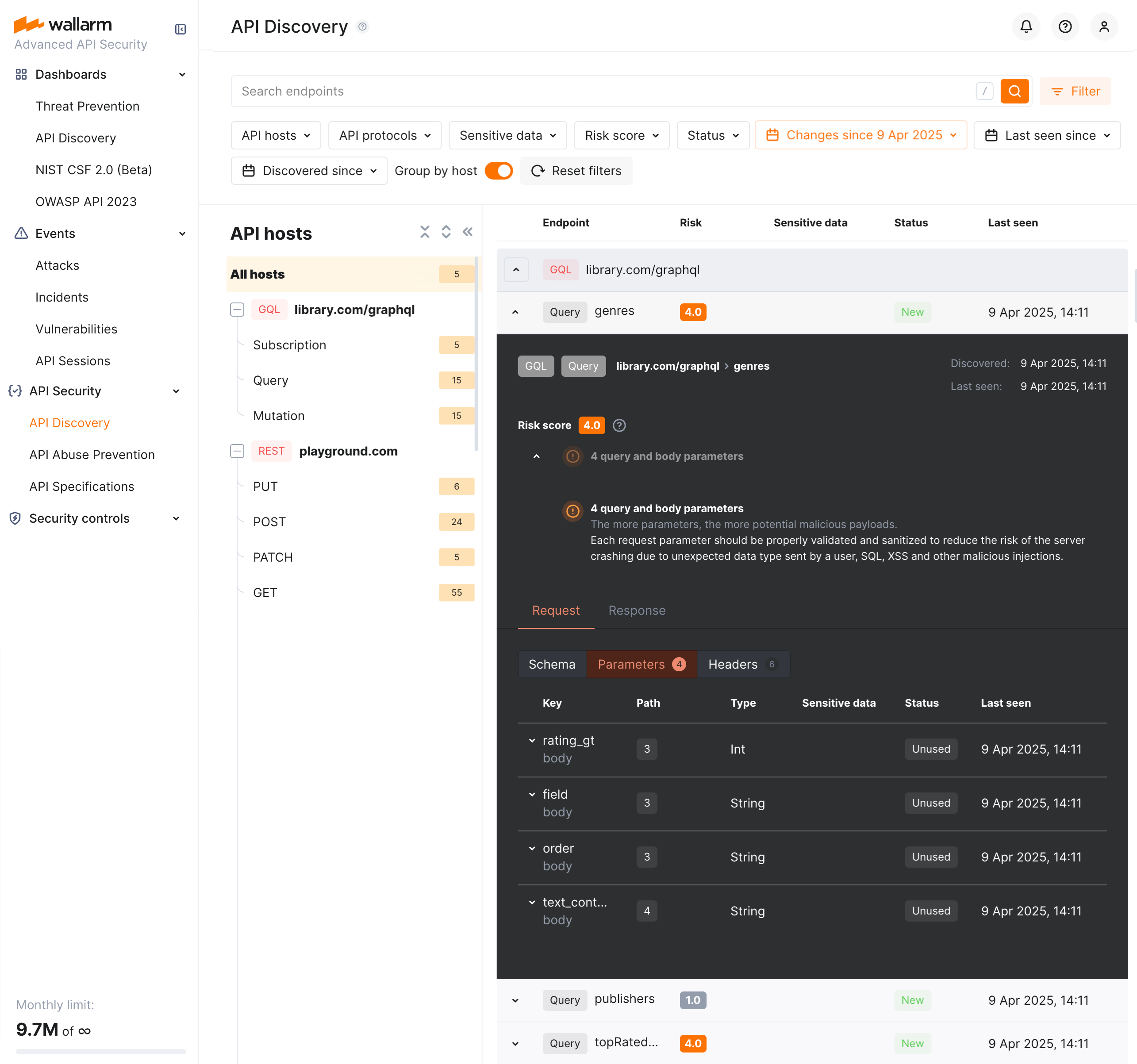
Each request/response parameter information includes:
-
Parameter name and the part of request/response this parameter belongs to
-
Path: the hierarchical location of a parameter within a GraphQL query structure (not displayed, if all parameters are stored in the same root location)
-
Information about parameter changes (new, unused)
-
Presence and type of sensitive data transmitted by this parameter, including:
-
Date and time when parameter value was last transferred by requests
In GraphQL operation details, in the Type column for parameters and headers, Wallarm indicates the data format identified through traffic analysis.
For GraphQL operations, data formats are detected in accordance with the scalar types specification:
-
Int: A signed 32‐bit integer. -
Float: A signed double-precision floating-point value. -
String: A UTF‐8 character sequence. -
Boolean: true or false.
SOAP operation details
By clicking the SOAP operation, you can find its details, including transferred sensitive data, risk score and what contributes to it, XML body parameters, HTTPS and XML headers of requests and responses:
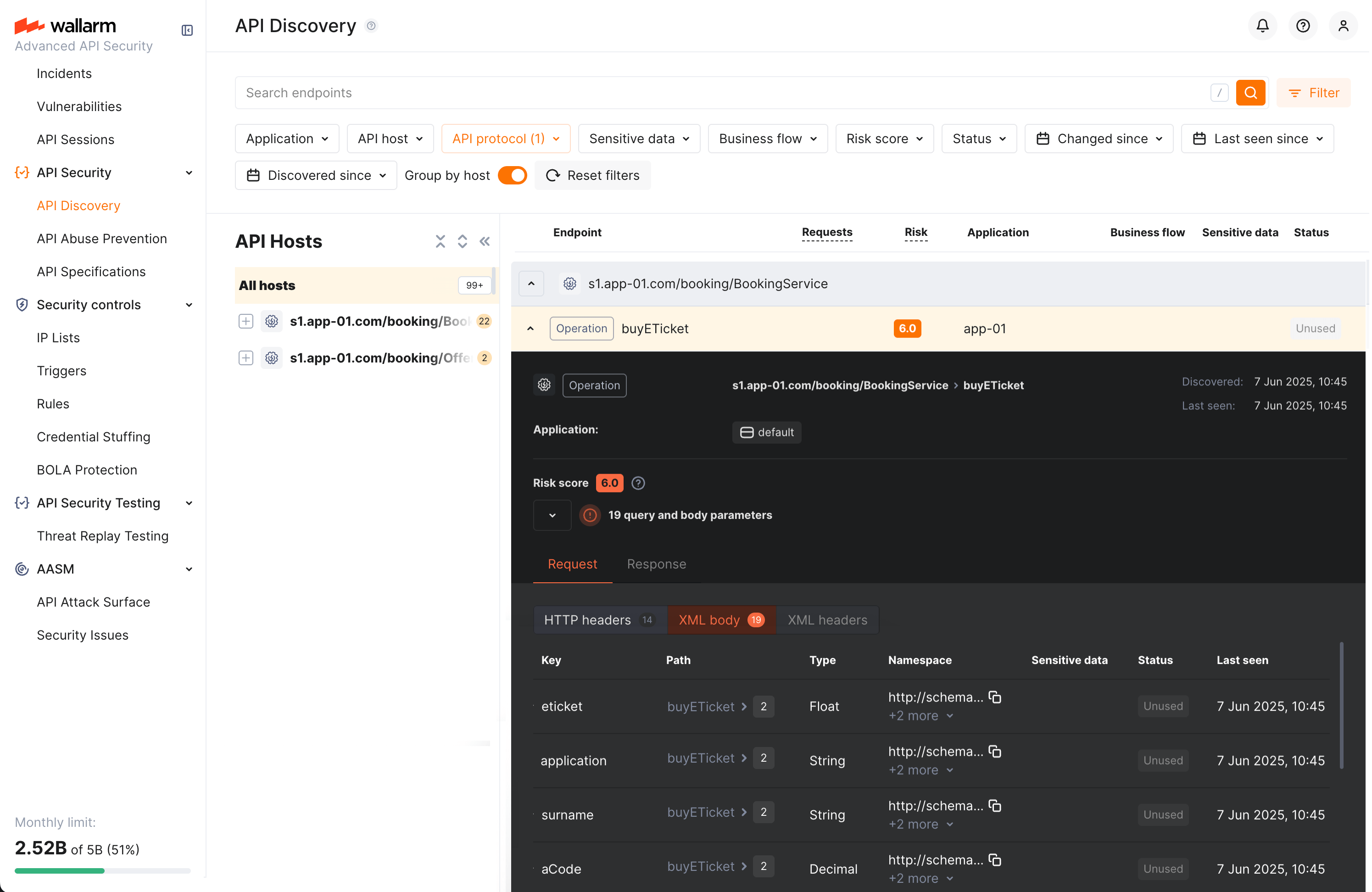
Each request/response XML parameter information includes:
-
Parameter name (Key)
-
Path: the hierarchical location of a parameter within an XML structure (not displayed, if all parameters are stored in the same root location)
-
Parameter type
-
Namespaces for path elements (from more general to more specific)
-
Presence and type of sensitive data transmitted by this parameter
-
Information about parameter changes (new, unused)
-
Date and time when parameter value was last transferred by requests
In SOAP operation details, in the Type column for parameters and headers, Wallarm indicates the data format identified through traffic analysis.
For SOAP operations, it is a limited set from the built-in primitive XML data types:
-
soapTypeString =
String -
soapTypeBoolean =
Boolean -
soapTypeFloat =
Float -
soapTypeDecimal =
Decimal -
soapTypeDuration =
Duration -
soapTypeURI =
URI
Endpoint activities
The number of requests related to the endpoint is displayed in the Requests column. Click this number to open the API Sessions section with the list of user sessions for the last week with these requests.
Within each found session, only requests to your endpoint will be initially displayed - in session, remove filter by endpoint to see all requests for context.
A structured view of session activity helps in understanding your endpoint place in malicious and legitimate activities, its relation to sensitive business flows and required protection measures.
Variability
URLs can include diverse elements, such as ID of user. API Discovery supports finding such elements for UUID, INTEGER, FLOAT and HEX path segment types:
-
/api/users/profile/a1b2c3d4-e5f6-7890-1234-567890abcdef12 -
/api/users/profile/f0e9d8c7-b6a5-4321-fedc-ba9876543210 -
/api/users/profile/1a2b3c4d-5e6f-7080-9102-34567890fedc
The API Discovery module unifies such elements into the {parameter_X} format in the endpoint paths, so for the example above you will not have 3 endpoints, but instead there will be one:
/api/articles/author/{parameter_1}
Click the endpoint to expand its parameters and view which type was automatically detected for the diverse parameter.
Notifications
You can setup API Discovery notifications to be sent to your personal email (the one you use to log in) and to any additional emails:
-
Daily endpoint changes
-
Hourly endpoint changes
The notification will include both changed and new endpoints. By default, the notification is disabled.
Exporting API inventory data
You can export the discovered API inventory as OpenAPI (OAS) 3.1 (JSON) or as CSV.
OpenAPI (OAS) export
Exporting to OAS lets you use the discovered API schema for protection, analysis, and integration with other tools:
-
Upload to API specifications in Wallarm to enforce requests or enable rogue API detection (when available for your API Discovery version).
-
Open in Swagger Editor to inspect and edit the inventory in OpenAPI format.
-
Use in Wallarm's Schema-Based Testing to run automated API security tests, or export to third-party platforms (e.g. Postman) for documentation, testing, or further analysis. The specification helps with vulnerability testing and reviewing endpoints for sensitive data and undocumented parameters.
To download the OAS file:
-
In Wallarm Console → API Discovery, select a single host for which you need the specification.
-
Optionally, apply any additional filters to limit the endpoints included in the export.
-
Click Download report.
-
In the popup, choose OpenAPI (OAS 3.1, JSON) and click Generate OAS.
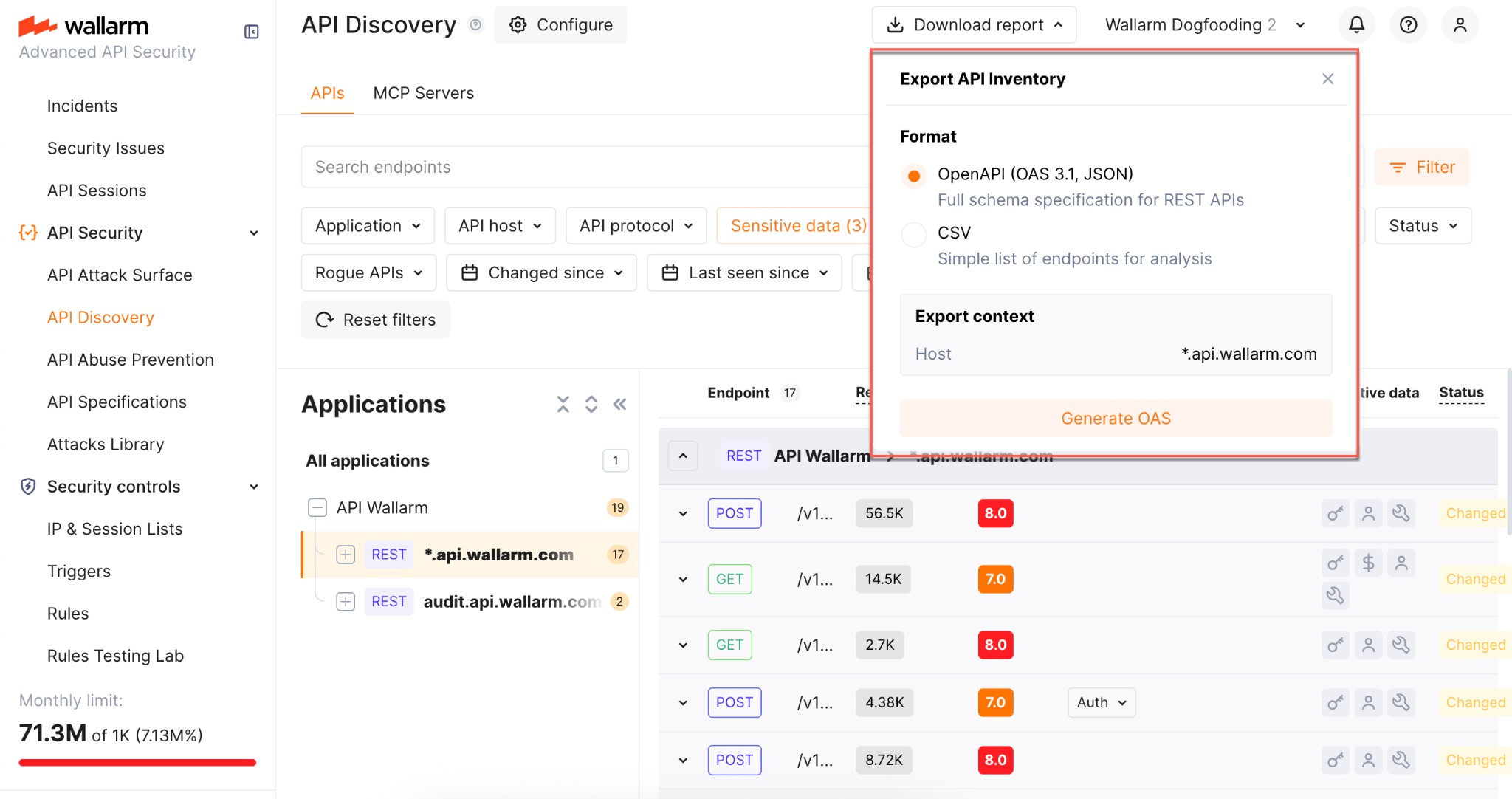
-
Wait until the file is generated. When ready, the browser starts the download automatically and the JSON file is saved to your default download location.
Limitations:
-
One host per specification (aligned with OpenAPI recommendations)
-
REST only
-
Maximum 1000 endpoints per host and 100,000 parameters in total per export
-
Not supported:
application/xmlandapplication/x-www-form-urlencodedcontent types -
Not supported: nested lists or objects in headers, path, or query parameters
-
Not supported:
oneOfdirective
CSV export
Use Download report → CSV to get the filtered endpoints in a comma-separated format. The CSV is generated immediately and includes key endpoint attributes such as risk score and sensitive data types.
No parameter information
The CSV report does not include information on API endpoint parameters.